
A new WordPress version appears in your dashboard, and the obvious question is: Should you update WordPress immediately, or wait?
For a business website, the answer depends on what kind of update it is.
If WordPress releases an important security update, you should generally install it as soon as practical, with a backup and appropriate testing. WordPress itself recommends immediate updates when a release fixes significant security vulnerabilities.
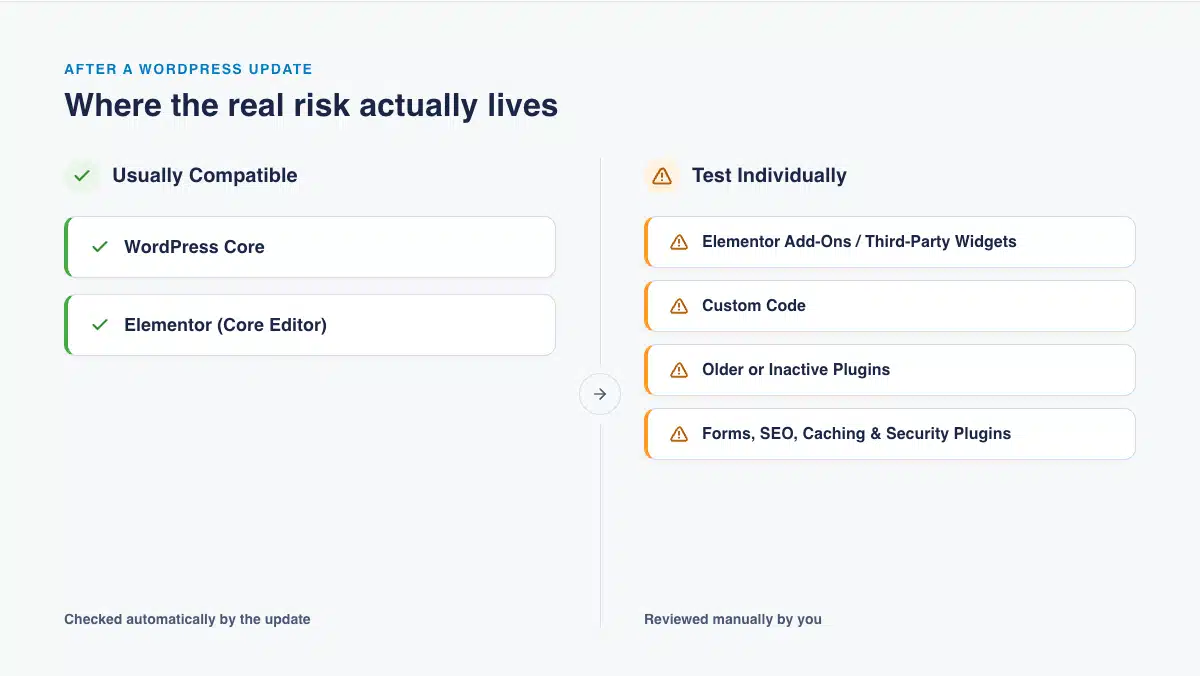
For a major WordPress release, however, being first is rarely the goal. A business website may depend on a page builder, forms, SEO tools, e-commerce functionality, caching, analytics, integrations, and custom code. Even if WordPress itself is stable, one of those connected components may not be ready.
For most small business websites, the safest approach is simple:
Back up the site, test the update on staging, check the functions customers rely on, and then update the live site once everything passes.
Here’s how to decide when to update and what to check before you do.
Should Small Businesses Update WordPress Immediately After a New Release?
Not every WordPress release needs to be installed the moment it becomes available.
Small businesses should prioritize security updates quickly, but major feature releases deserve more testing before they reach a live business website.
That distinction matters because updating WordPress is not just about WordPress core. Your website may also rely on:
- A WordPress theme
- Elementor, Divi, or another page builder
- Page-builder add-ons
- Contact and lead-generation forms
- WooCommerce or another e-commerce platform
- SEO plugins
- Security and caching plugins
- Analytics and advertising scripts
- CRM or email integrations
- Custom code
Each component has its own release and compatibility cycle.
So the better question is not simply, “Is the new WordPress version safe?”
It is:
“Is my website’s entire setup ready for the new WordPress version?”
That is why testing matters more than racing to click the update button.
How Long Should a Business Wait Before Updating WordPress?
There is no universal rule such as “always wait seven days” or “wait one month.”
The safest timing depends on the type of update.
Security update: Update as soon as practical
If WordPress identifies a release as a security update, treat it as a priority.
WordPress routinely distributes minor and security releases through its background update system, and for significant security releases it may explicitly recommend immediate updating.
For a business website, that still does not mean ignoring your normal safeguards.
Before updating:
- Confirm that you have a current backup.
- Check whether your hosting provider or maintenance team has flagged compatibility problems.
- Test the update on staging when your setup is complex or business-critical.
- Verify the most important site functions after deployment.
The goal is to move quickly without turning a security fix into an avoidable website outage.
Minor maintenance or bug-fix update: Usually update promptly
Minor WordPress releases typically contain maintenance, stability, or security improvements rather than major new platform changes.
These updates are generally lower risk than major releases, but a business website should still have reliable backups and post-update monitoring.
If your hosting or maintenance setup already handles minor WordPress updates automatically, confirm that someone is also monitoring the site for problems after those updates run.
Major WordPress release: Test before updating the live site
A major release can introduce new functionality and changes that affect themes, plugins, page builders, or custom integrations.
There is no benefit in choosing an arbitrary waiting period.
Instead, use readiness as the trigger:
- Are your critical plugins compatible?
- Is your theme compatible?
- Is your page builder ready?
- Does your hosting environment meet the
- requirements?
- Has the update passed testing on staging?
- Do your forms, checkout processes, tracking, and other business-critical functions still work?
If the answer to those questions is yes, you are ready to update.
That may happen within several days for one site and take longer for another.
What Is the Safest Way to Update a Small Business WordPress Website?
For a business site, the safest WordPress update process is:
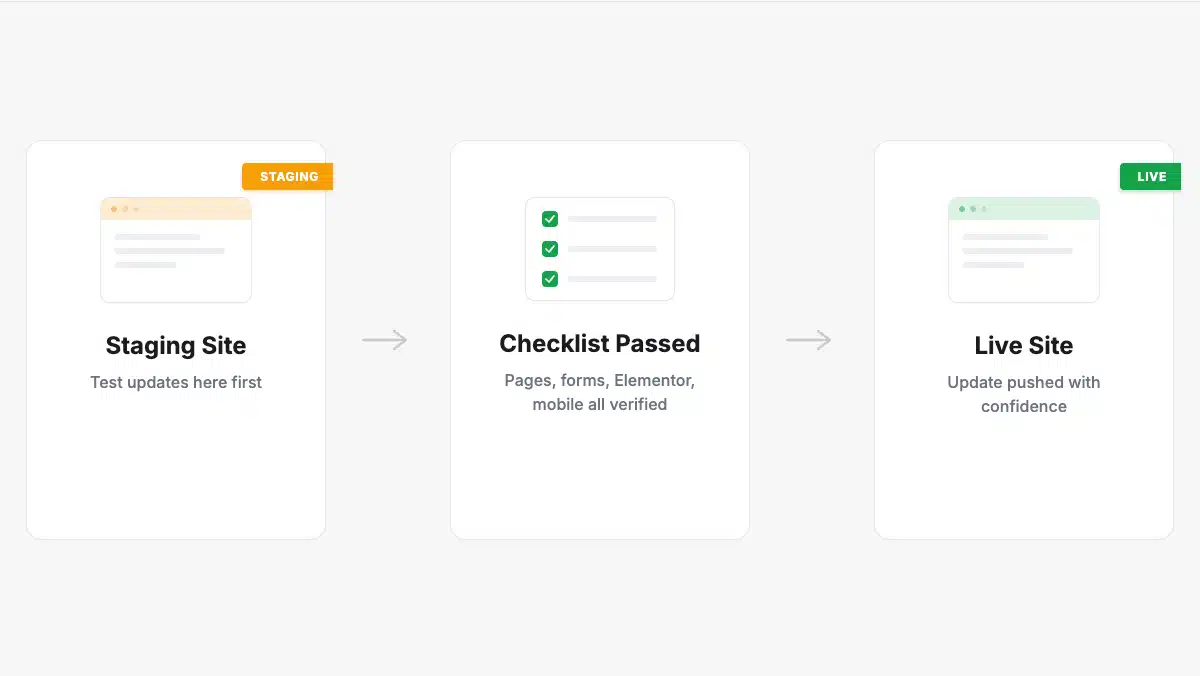
Backup → staging → compatibility check → functional testing → live update → post-update verification.
WordPress’s own development guidance recommends using a development or staging copy when testing changes so you can work without interrupting the live website.
Here is what that process looks like in practice.
1. Create or verify a full backup
Before changing WordPress core, confirm that you have a recent backup of both:
- Website files
- Website database
More importantly, make sure that backup can actually be restored.
A backup you have never tested is reassuring right up until the moment you need it.
2. Check your hosting environment
Confirm that your hosting environment supports the new WordPress version and that your PHP, database, and related server configuration meet its requirements.
If your site is managed by a WordPress support provider, this is something they should verify before deployment.
3. Create a staging copy
A staging website is a private copy of your live site where updates can be tested without exposing customers to the results.
Apply the WordPress update there first.
For a simple brochure website, this may feel cautious. For a website responsible for leads, appointments, transactions, or customer communication, it is inexpensive insurance.
4. Check your theme and plugins
Look at the components that have the greatest influence on how your site works.
Prioritize:
- Your active theme
- Your page builder
- Page-builder add-ons
- Forms
- E-commerce plugins
- Membership or booking plugins
- Security and caching plugins
- Older plugins
- Custom integrations
A plugin being active does not automatically mean it has been tested thoroughly with the latest major WordPress release.
Third-party add-ons deserve particular attention because they may follow a different update schedule from the platform they extend.
5. Test what customers actually use
A website can look perfectly normal after an update while quietly losing leads.
Do not stop testing when the homepage loads.
Check the functions that matter to the business.
WordPress Pre-Update Checklist for Small Businesses
Before pushing a WordPress update to your live business website, work through this checklist.
Website and hosting
- Confirm a current backup exists.
- Confirm the backup includes files and the database.
- Verify hosting compatibility.
- Check relevant PHP and database requirements.
- Apply the update to staging first.
Pages and navigation
- Check the homepage.
- Check your most important service or product pages.
- Test navigation menus.
- Check the header and footer.
- Review pages using complex page-builder layouts.
- Check the website on mobile and tablet sizes.
Lead generation
- Submit every important contact form.
- Test quote-request forms.
- Test appointment or booking forms.
- Confirm form notifications arrive.
- Check thank-you pages and redirects.
- Verify CRM or email-platform integrations.
E-commerce
If your website sells online:
- Add a product to the cart.
- Test the cart.
- Test checkout.
- Confirm payment methods display correctly.
- Check transactional emails.
- Test account or login functionality where applicable.
Whenever possible, run these tests without accidentally charging the company credit card twelve times. Accounting has enough to do.
SEO, analytics, and advertising
- Confirm analytics tracking is still firing.
- Check advertising pixels.
- Verify important conversion events.
- Check SEO plugin settings.
- Review page titles and metadata on important pages.
- Confirm your XML sitemap remains accessible.
- Check that no staging or maintenance settings have accidentally carried over to production.
- Visual and technical checks
- Review the site on desktop and mobile.
- Check browser console errors if you have technical support available.
- Look for broken layouts.
- Check interactive elements such as accordions, sliders, popups, and tabs.
- Clear relevant caches after deployment.
- Verify site speed and basic functionality after the update.
If staging passes these checks, you can update the live website with considerably more confidence.
Can a WordPress Update Break a Business Website?
Yes.
But in many cases, the problem is not WordPress core itself.
The failure happens when the new WordPress version interacts with something else on the site.
Common examples include:
- An older plugin
- A theme that has not been updated
- A page-builder extension
- Custom PHP or JavaScript
- A checkout integration
- A caching configuration
- An outdated server environment
That is why a website can appear fine at first glance but have a broken contact form, mobile menu, tracking script, or checkout process hiding underneath.
For a business, those failures matter far more than whether an administrator can successfully log into WordPress.
Your testing plan should therefore focus on business functions, not just whether the update technically completed.
When Is It Safe to Update WordPress the Same Day?
Same-day updating can be reasonable when:
- The release contains an important security fix.
- Your site is simple and uses relatively few plugins.
- Your theme and critical plugins are already compatible.
- You have a reliable backup.
- You can test the update before or immediately after deployment.
- You have a rollback plan if something fails.
For straightforward websites, the entire process may be quick.
When Should You Slow Down and Test First?
Be more cautious when your website has:
- Elementor, Divi, or another page builder with multiple extensions
- WooCommerce
- Custom code
- A custom theme
- Membership functionality
- Booking or appointment functionality
- Multiple marketing integrations
- Older or lightly maintained plugins
- Mission-critical forms
- Significant lead or revenue generation
- A website setup nobody currently understands particularly well
The more systems involved, the more important staging becomes.
Complexity, rather than website size alone, is what raises the risk.
A five-page website with several interconnected plugins can be more fragile than a 500-page publishing site with a standardized setup.
What If You Don’t Have a Staging Site?
If your website generates leads or revenue and you do not currently have staging, fixing that should be part of your WordPress maintenance strategy.
Ask your hosting provider whether staging is included with your plan.
If it is not, your web support provider can create another testing workflow, but making major updates directly on the live site should not be your default process.
WordPress’s own technical documentation describes development copies and test environments as a way to make changes without interrupting the production site.
For a business, that separation is valuable because it lets problems happen somewhere customers cannot see them.
A Simple WordPress Update Decision Framework
Before every WordPress core update, ask these four questions:
1. Is this a security update?
If yes, prioritize it.
Do not delay a meaningful security update simply because your normal major-release process takes longer. Use backups and testing to deploy it safely and quickly.
2. Is this a major feature release?
If yes, test compatibility before pushing it to production.
3. Does the website depend on complex plugins or custom functionality?
If yes, staging and functional testing become more important.
4. Can you restore the website if the update fails?
If you cannot confidently answer yes, solve that problem before updating.
That framework is more useful than choosing an arbitrary number of days to wait.
Frequently Asked Questions About WordPress Updates
Should I update WordPress immediately after a new version is released?
Not necessarily. Security releases should generally be prioritized quickly. For major feature releases, a business should first confirm compatibility and test its important website functions before updating the live site.
How long should a small business wait before updating WordPress?
There is no fixed waiting period. Update when your critical theme, plugins, hosting environment, and business functions have been tested and are ready. Security updates should normally be handled much faster than major feature releases.
What is the safest way to update WordPress?
Create a current backup, apply the update on a staging copy, check compatibility, test the website’s important functions, push the update live, and verify the production site afterward.
Can updating WordPress break my website?
It can. Problems commonly involve compatibility between WordPress and themes, plugins, page builders, custom code, or integrations. Testing on staging reduces the chance of discovering those problems on your live website.
Do I need a staging site to update WordPress?
Simple websites may sometimes update safely without one, but staging is strongly recommended for business-critical sites, especially those with page builders, e-commerce, custom functionality, or lead-generation integrations.
Should WordPress security updates be installed immediately?
Important security releases should be prioritized. WordPress may explicitly recommend immediate updating when a release addresses security vulnerabilities. Businesses should combine that urgency with reliable backups, testing, and post-update verification.
The Bottom Line: Update WordPress Promptly, Not Recklessly
Keeping WordPress current is important, but the fastest possible update is not always the safest update.
For a small business website, use a process based on the type of release:
- Security update: prioritize it and deploy quickly with appropriate safeguards.
- Minor maintenance update: update promptly and monitor the site.
- Major WordPress release: verify compatibility and test on staging before updating production.
The most important habit is not waiting a specific number of days.
It is knowing whether your website is ready.
Back up the site, test the update away from production, verify the functions your customers depend on, and then push the update live.
If you’d rather not run this checklist yourself every time WordPress ships an update, that’s exactly what our WordPress maintenance services are for (staging, testing, and safe rollout, handled for you).
You can also see how we approach Elementor SEO and check our list of the most common WordPress issues we see business sites run into.