
WordPress is an excellent platform for building your website. It’s flexible, robust, and easy to use. However, it can still experience issues.
The flexibility of WordPress means there’s almost always a solution to problems that might arise. But as a result of that complexity, errors can be time-consuming and difficult to address on your own.
The first step is to know what you might be up against. In this article, we’ll explore 10 common WordPress issues you might come across. Let’s get to work!
1. Broken Forms
Broken WordPress forms are one of the more frustrating problems you can encounter. Forms are important for lead generation and building your subscriber base — this includes email signups, contact forms, and questionnaires. If they aren’t working correctly, it can significantly slow down your business.
Broken forms can manifest themselves in a variety of ways:
- Your forms might fail to send an expected email, like a notification or confirmation of submission.
- Forms might appear fine on the site but fail to record anything on the back end.
- Your forms may also simply fail to display properly to visitors.
Most of the time, broken forms are caused by a compatibility issue between your form plugin and the version of WordPress running on your site. Fixing it generally means downgrading to a previous version of the plugin, or finding and configuring an alternative plugin.
2. WordPress Not Sending Email
It’s not uncommon for WordPress sites to experience email issues. This can sometimes mean that messages don’t get sent at all. However, it’s more common to experience delivery problems, where the email technically sends from your site but never reaches the recipient.
This issue is usually caused by one of two things:
- Your host is not set up properly for the PHP mail() function used by default in WordPress.
- Your host is configured correctly, but emails sent through this system fail spam tests and don’t make it to the users’ inboxes (or even their spam folders).
The solution to this problem is to configure your site to use Simple Mail Transfer Protocol (SMTP) to send emails. This system has an easier time passing authentication checks and is generally much more reliable. The task can be accomplished either manually or by using plugins.
3. 500 Internal Server Error
This frustrating issue presents itself as an error message when you’re attempting to load a page on your site. The error provides very little usable information, so troubleshooting it can be difficult at best.
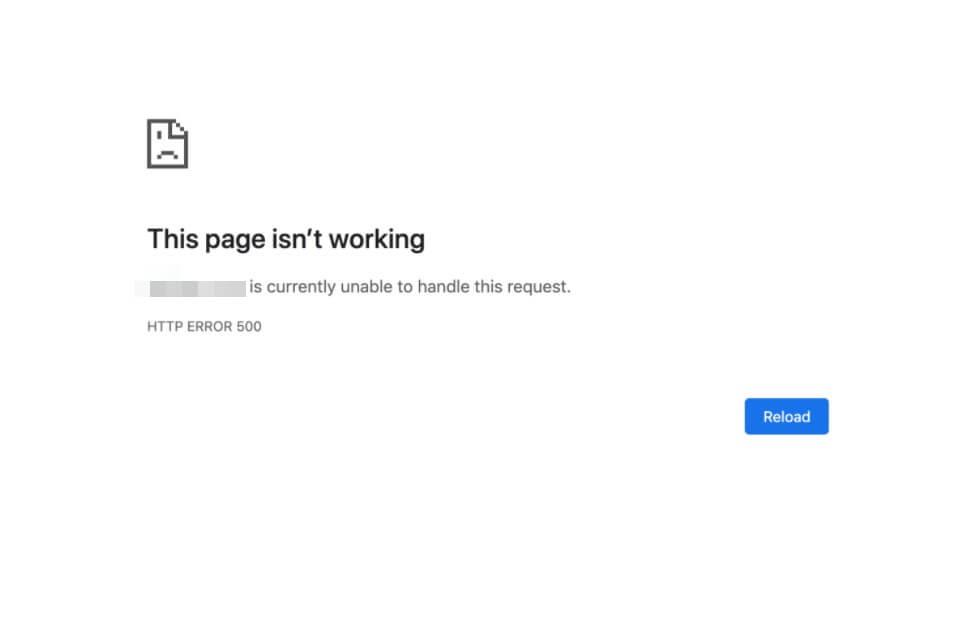
While this error isn’t exclusive to WordPress sites, when it does occur on one, the usual culprits are either incompatible or buggy plugins or a corrupt .htaccess file. This file helps configure the web server for your site, and if it gets deleted or becomes corrupted, the result is often an error message (such as the 500 Internal Server Error).
To check for plugin problems, you can disable all of the plugins on your site, confirm that everything works as it should at that point, and then turn the plugins back on one at a time. If this doesn’t help, you’ll need to generate a fresh .htaccess file for your site. This isn’t terribly difficult to do, but can be confusing if you don’t have experience working with your site’s file system.
4. 403 Forbidden Error
This error message means that your server permissions don’t allow access to a given page. This can crop up when you’re trying to install WordPress, attempting to access your dashboard, or simply visiting a page on your site.
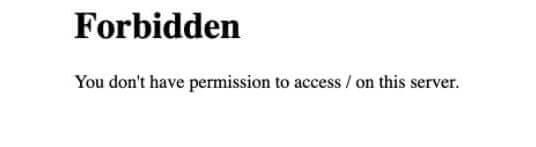
It can be caused by one of four different scenarios:
- A poorly configured security system that’s blocking your IP address
- A corrupt .htaccess file
- Incorrect file permissions on your server
- An issue with your WordPress hosting provider
Correcting this issue can be as simple as generating a new .htaccess file or replacing your plugin, or it can be as involved as hunting down and changing WordPress file permissions to their correct values. Of course, if the issue ends up being on your host’s end, you’ll likely need to reach out to their team for support.
5. WordPress Memory Exhausted Error
This next issue arises when your WordPress site requires more memory than has been allocated to it by the server it’s hosted on. Note that “memory” in this case is not referring to storage space, but is more akin to the RAM on your computer.
On a shared hosting server, each site has a certain amount of memory allocated to it to ensure that they all perform well. If a site exceeds that allocation, it won’t be able to run properly. In the worst-case scenario, it won’t be able to run at all, and you’ll get this message.
This issue can be fixed by one of two approaches. First, increasing the PHP memory limit in the wp-config.php file might do the trick. This is a core WordPress file that provides information about the database your site uses, among other things. Editing it is relatively simple, but you do have to be careful to ensure that you enter the correct code in the correct place.
It’s also worth reviewing what’s using memory on the site to identify problems. If the site is working normally and then suddenly starts using excessive amounts of memory, there’s probably an issue that needs to be addressed. It could even be a security-related problem.
6. WordPress Login Redirect Loop
If you’ve ever attempted to log in to your WordPress dashboard only to find yourself being returned to the login page again and again, you’ve experienced the frustrating redirect loop. With this error, you can enter the correct credentials, but you never get logged into your site.
This issue completely prevents you from accessing your site to edit posts and pages or perform administrative tasks, so you’ll need to get it corrected as quickly as possible. There are a few potential causes:
- Outdated browser cookies
- An issue with your browser’s cache
- A misconfigured WordPress plugin
- A corrupt .htaccess file
The first thing you should try is accessing the site from a different browser. Some browsers reject or disallow cookies based on their security settings.
If that doesn’t work, try clearing the cache and cookies in your browser. Beyond that, you’ll need to disable your plugins via the file system or access and refresh your site’s .htaccess file.
7. WordPress 404 Error Page
This error indicates that the server can’t locate the page you’re trying to access. That can seem concerning, but usually the page isn’t actually missing. Instead, a configuration error is causing it to appear that way.
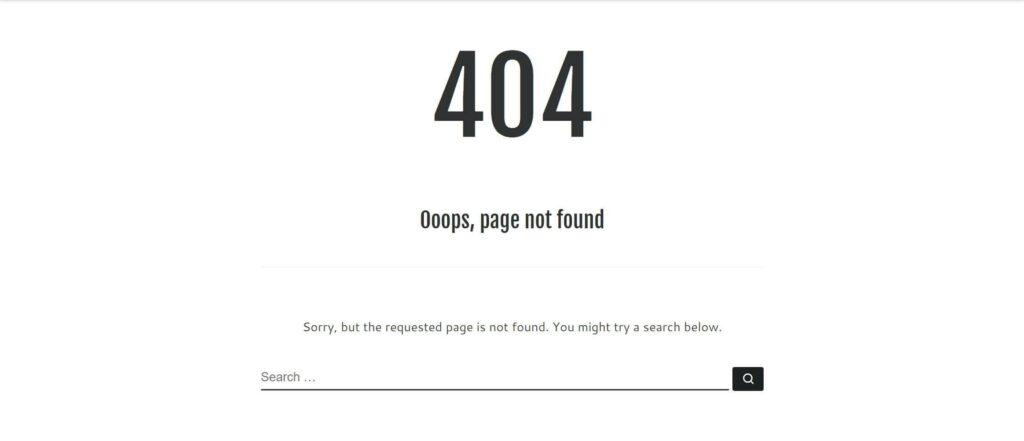
The most common cause of a 404 error is a link (either on your site or on another site) that points to an incorrect or nonexistent URL.
If you have confirmed the link points to a valid URL, there’s a small chance that your .htaccess file has been corrupted. Restoring this file to its default state or generating a new one will fix it — but first make absolutely sure it’s not simply a case of a mistyped URL.
8. Connection Timed Out Error
This is one of the most common WordPress errors you’re likely to encounter. It’s often caused by a shared server that is overburdened, and thus unable to allocate enough resources to all the websites hosted on it.
This unfortunate situation can be caused by “heavy” plugins that use a large amount of resources, or an exhausted PHP memory limit (similar to the “memory exhausted” error above). As such, the fixes are often similar: disabling plugins and going through each one to test for the problem to recur, or increasing the PHP memory limit for the site.
9. Error Establishing a Database Connection
All of the data on your WordPress site is stored in a MySQL database that exists separately from the website itself. When your site needs to load a page, it pulls the information from this database as part of the process. This database has its own login credentials (username and password) that your WordPress site uses to access it.
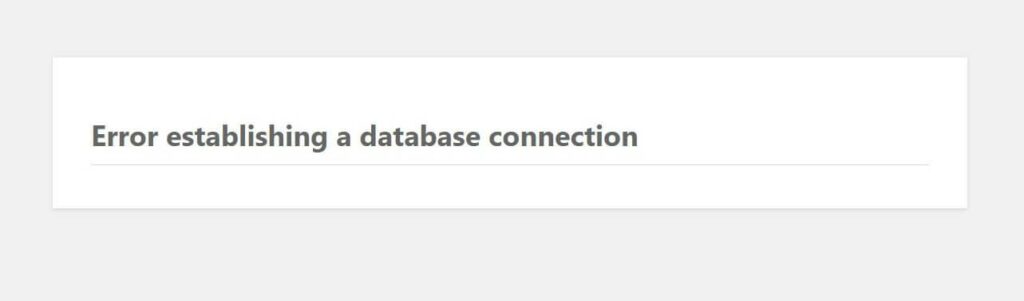
This error message indicates that your site can’t access the database. This might be caused by your WordPress install using the wrong MySQL credentials or a corrupted database.
To address these issues, the first thing to do is verify the credentials WordPress is using and updating them if necessary. If that doesn’t work, the database will need to be repaired — a process that can be quite complex.
10. The White Screen of Death
The White Screen of Death (WSoD) is the nickname for an error where your site shows only a blank white page when you try to access it. There’s no error message or indication of what could be wrong — just a white screen (hence the name).
This issue can have any number of causes, and pinning the exact cause down can be difficult. Plugins, your site’s theme, the PHP memory limit, and more can all be potential culprits. Start by trying to log in to your backend, disabling your plugins, and checking your browser console. If none of those things shed light on the issue, it might be time to reach out to a professional for help.
Professional Help to Fix WordPress Issues
Whether you’re running a personal blog or an international eCommerce site, WordPress issues and errors can bring your work (and revenue) to a screeching halt. Additionally, since WordPress is made up of so many parts, troubleshooting problems can be daunting.
Fortunately, help is available. We offer support plans that ensure your site is always running at its best. If you need assistance with one of the errors on this list, or simply want to prevent them in the first place, don’t hesitate to ask for help from our team of experts!