
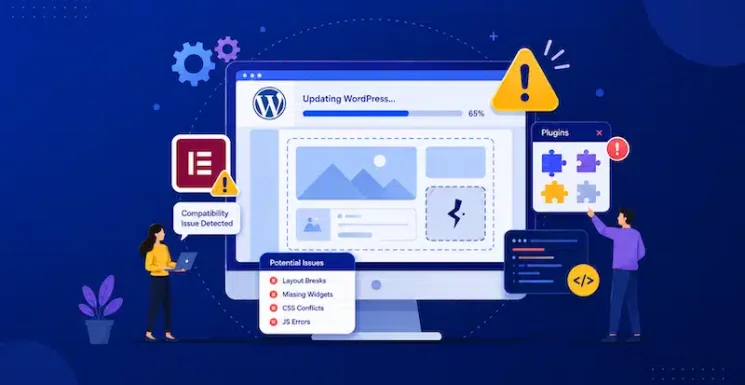
Every few months, WordPress releases an update. And every few months, someone updates their live business website without thinking twice, and spends the next two hours wondering why their homepage looks like it’s been through a blender.
Why does Elementor break after a WordPress update?
Elementor can break after a WordPress update when WordPress core, Elementor, Elementor Pro, your theme, or third-party add-ons are running versions that are not fully compatible with one another. Common symptoms include broken layouts, missing widgets, styling problems, forms that stop working, and errors in the Elementor editor.
The safest approach is to treat WordPress, Elementor, your theme, and your plugins as one connected software stack. Check compatibility first, create a backup, test updates on a staging site, and verify your most important pages and forms before updating your live business website.
If your site is built with Elementor, WordPress updates carry a few extra considerations that don’t apply to the average blog or portfolio site. Not because Elementor is fragile (it isn’t), but because you’re running a more complex stack. And complex stacks require a little more care.
Here are the most common mistakes people make when updating a WordPress site built with Elementor, and what to do instead.
Mistake #1: Treating “WordPress is updated” and “my site is updated” as the same thing

This is the big one.
When WordPress releases a new version, it updates the core software your site runs on. That’s important. But your website isn’t just WordPress core. It’s WordPress core plus your theme, plus Elementor, plus Elementor Pro, plus whatever add-ons and plugins you’ve added on top.
All of those pieces have their own version cycles, their own compatibility timelines, and their own update dependencies.
So when you click “Update” on WordPress core, you haven’t updated your site, you’ve updated one layer of it. The risk is that the layer you just updated doesn’t yet play nicely with the layers that haven’t been updated yet, or the ones that can’t be updated without breaking something else.
What to do instead: Treat your website as a software stack rather than a collection of independent plugins. Before updating, check WordPress core, your theme, Elementor, Elementor Pro, and your business-critical plugins together.
Don’t assume every component should simply be updated simultaneously on the live website. Check each update’s compatibility information first, create a current backup, and test the planned updates on staging before making the same changes to your production site.
We’ll cover a practical update sequence below.
Mistake #2: Assuming Elementor compatibility means all of Elementor is compatible

You’ve probably seen something like this in the WordPress plugin notes after a major update: “Compatible with Elementor.”
That sounds reassuring. But “Elementor” and “everything built with Elementor” are two different things.
Elementor core, the main plugin, may well be compatible with a new version of WordPress. But if you’re running Elementor Pro, third-party Elementor add-ons (like Essential Addons, JetElements, or any number of custom widget libraries), or any plugins that extend Elementor’s functionality, those need to be checked separately.
The plugin authors of those add-ons have their own update schedules. Some will have tested against a new WordPress version before it ships. Others will test after it ships. A small number may not test quickly at all.
If a page on your site uses a widget from a third-party Elementor add-on that hasn’t been updated for compatibility, that page can break even if Elementor core is fine.
This is one of the most common reasons an Elementor website appears to “break after a WordPress update” even when WordPress and Elementor themselves are working correctly. The actual conflict may come from an Elementor extension, theme integration, or another plugin that interacts with the page builder.
What to do instead: Before any major WordPress update, make a quick list of the Elementor-related plugins your site uses, not just Elementor and Elementor Pro, but everything that plugs into Elementor. Check the update logs and compatibility notes for each one, not just the main plugin.
Mistake #3: Updating directly on the live site
This one is hard to overstate, and yet it’s the most common shortcut people take.
Updating WordPress core (and especially a major version update) on a live, customer-facing website without testing it first is a risk that’s completely avoidable. A two-minute shortcut can create a two-hour fix, or worse, a broken website that customers see before you do.
The safest approach for a business website is to test significant WordPress, Elementor, theme, and plugin updates on a staging environment first: a private copy of your site where you can apply updates, check everything thoroughly, and confirm nothing broke before the change goes live.
This matters even more with Elementor because Elementor pages can be sensitive to theme changes, database updates, and plugin version conflicts in ways that a simple page or blog post isn’t. An Elementor-built page stores its layout data in a specific way, and certain updates can affect how that data is rendered.
What to do instead: If your host offers staging environments (many do, for example, Kinsta, WP Engine, SiteGround, and others include this), use one. Apply the updates there, click through your key pages, test your forms, test your header and footer, and check the site on mobile. Then roll to live.
If you don’t have a staging environment, it’s worth having one. Most quality WordPress hosts include it, and the time it saves the first time something breaks will more than justify it.
What should I do if Elementor breaks after a WordPress update?
If you’ve already updated WordPress and your Elementor website is broken, don’t immediately start changing multiple plugins and settings at once. That can make the original conflict harder to identify.
Instead, work through the problem systematically:
- Create a backup of the site’s current state. Even though the site is already experiencing problems, preserve its current files and database before making further changes.
- Clear all caches. Clear your WordPress caching plugin, hosting/server cache, CDN cache, and browser cache. Some apparent post-update layout problems are caused by stale CSS or cached files rather than an actual compatibility failure.
- Regenerate Elementor’s CSS and data. In Elementor’s tools, regenerate CSS/data and then check the affected pages again.
- Check Elementor and Elementor Pro versions. Make sure the installed versions are intended to work together and review recent release notes for known issues.
- Check third-party Elementor add-ons. If only certain widgets, templates, or pages are broken, an Elementor extension is a likely source of the conflict.
- Test for plugin or theme conflicts on staging. Disable suspected plugins one at a time, starting with Elementor extensions and plugins involved on the affected pages. Don’t troubleshoot by randomly disabling plugins on a busy live business website.
- Restore the last known-good backup if the problem is affecting customers. If forms, checkout, lead generation, or important pages are broken and the conflict cannot be resolved quickly, restoring the working version may be safer than leaving the site partially broken while troubleshooting.
Once the site is stable again, identify the incompatible component on staging before attempting the update again.
Mistake #4: Only testing the homepage

After an update, most people check the homepage, decide it looks fine, and move on.
The homepage is usually the safest page on an Elementor site. It tends to use more standard elements, gets checked frequently, and is often the page that’s been touched most recently.
The pages that actually break are often the ones nobody checked: a landing page built six months ago with a custom Elementor template, a service page that uses a third-party widget for a pricing table or accordion, a blog post template with a specific layout, or a form page that connects to a CRM or email tool.
What to do instead: Build a short test checklist and run through it after every major update:
- Homepage and main navigation
- Service/product pages (especially any built with custom Elementor templates)
- Contact forms (do they submit correctly and send notifications?)
- Any pages using third-party Elementor widgets
- The site header and footer (these often use Elementor templates and can break silently)
- Mobile layout on a real device, not just the browser preview
- Any pages connected to conversion tracking or analytics
- Checkout, booking, membership, or other revenue-critical functionality, if applicable
Five minutes of checking can catch a broken form before a customer does.
Mistake #5: Waiting too long or updating too fast
There’s a version of this mistake on both ends.
Some site owners ignore updates for months. Security patches, bug fixes, compatibility improvements, all sitting there, uncollected. Running a significantly outdated version of WordPress is a real security risk, not just a performance issue. Hackers actively target known vulnerabilities in old versions.
But on the other side, updating within hours of a major release, before plugin developers have had time to push compatibility updates, is also risky. On launch day of a major WordPress version, some Elementor add-ons may not have published their compatibility patches yet.
What to do instead: Apply security fixes and routine maintenance promptly, but treat major WordPress releases more carefully. Before installing a major release on your business website, confirm that Elementor, Elementor Pro, your theme, and your critical plugins have compatible versions available.
For many business websites, allowing some time for early compatibility issues to surface can reduce risk. But don’t rely on an arbitrary waiting period alone. Compatibility checks, a current backup, staging tests, and post-update verification are more important than whether you waited three days or two weeks.
What order should you update WordPress and Elementor?
There isn’t one universal update order that is correct for every WordPress website because the safest sequence depends on the versions being installed and the dependencies between your plugins.
For an Elementor business website, use this process:
- Back up the website first.
- Review the release notes and compatibility requirements for WordPress, Elementor, Elementor Pro, your theme, and important Elementor add-ons.
- Clone the current website to staging.
- Apply the updates on staging in the supported order for those specific releases.
- Keep Elementor and Elementor Pro on compatible versions. If Elementor provides a specific update sequence for the versions you’re installing, follow its current documentation rather than relying on a permanent rule of thumb.
- Update and test critical third-party add-ons and plugins.
- Test important pages, templates, forms, navigation, and mobile layouts.
- Repeat the tested update sequence on the live site.
- Run the same post-update checks again on production.
The important point isn’t simply whether WordPress or Elementor gets updated first. It’s knowing that the versions you’re installing are compatible and proving that the complete update sequence works before you expose customers to it.
Mistake #6: Not knowing who manages the updates
This one is less technical and more organizational, but it’s responsible for a surprising number of broken sites.
For a small business, the real issue isn’t simply who has administrator access. Someone needs to own the complete maintenance process: backups, compatibility checks, staging, updates, testing, troubleshooting, and rollback if something fails.
On small business websites, updates often fall into a grey area. The business owner thinks their web developer handles it. The web developer thinks the business owner handles it. Nobody handles it. And then one day WordPress shows a critical security notice that’s six versions behind.
Or the opposite happens: two people both update the site at once, at different times, without coordinating.
What to do instead: Decide clearly who is responsible for WordPress updates and make sure they have the process to do it correctly, not just the access. If you’re using managed WordPress maintenance services like Pronto, this responsibility belongs to our support team. If you’re self-managing, assign it explicitly and make sure that person knows about staging, testing, and the plugin compatibility issue outlined above.
A safer Elementor update process for small business websites
If your website generates leads, bookings, sales, or customer inquiries, WordPress maintenance should be treated as a business process rather than an occasional administrative task.
A reliable update workflow looks like this:
1. Monitor
Keep track of WordPress, Elementor, Elementor Pro, theme, plugin, and security updates.
2. Assess
Determine whether an update is routine, security-sensitive, or likely to affect compatibility.
3. Back up
Create a restorable backup of both the website files and database.
4. Stage
Apply significant updates to a staging copy of the website first.
5. Test
Check the pages and functions that matter to the business: navigation, service pages, forms, templates, mobile layouts, analytics, checkout or booking functionality, and third-party integrations.
6. Deploy
Apply the tested update sequence to the live website.
7. Verify
Repeat the critical checks after deployment.
8. Roll back if necessary
If an update causes a serious issue, restore the last known-good version and investigate the conflict away from the production site.
For a small business, the goal isn’t merely to keep the WordPress dashboard free of update notifications. The goal is to keep the website secure and current without disrupting the functions that generate revenue and customer inquiries.
Key takeaways: How to prevent Elementor from breaking after updates

Elementor usually doesn’t break simply because WordPress was updated. Problems occur when one part of the website’s software stack changes and another component isn’t compatible with that change.
To reduce that risk:
- Treat WordPress, Elementor, Elementor Pro, your theme, and third-party plugins as one connected stack.
- Check compatibility before significant updates.
- Keep a current, tested backup.
- Test major changes on staging rather than experimenting on your live business website.
- Pay particular attention to third-party Elementor add-ons.
- Test forms, templates, mobile layouts, navigation, and revenue-critical functionality after updating.
- Make one person or provider clearly responsible for the maintenance process.
- Have a rollback plan before an update causes downtime.
If Elementor does break after an update, clear caches and regenerate Elementor’s CSS/data first, then investigate version, plugin, theme, and add-on conflicts systematically. If the problem affects customers or lead generation, restore a working backup while you troubleshoot the conflict on staging.
For small businesses, this process matters because a “minor website problem” can actually mean lost inquiries, failed forms, broken bookings, or missed sales.
Frequently asked questions about Elementor and WordPress updates
Why is my Elementor layout broken after an update?
Common causes include outdated Elementor add-ons, incompatible plugin or theme versions, cached CSS, or Elementor files that need to be regenerated. If only certain pages or widgets are affected, check which Elementor extensions those pages use.
Should I update WordPress or Elementor first?
Don’t rely on a permanent “WordPress first” or “Elementor first” rule. Check the compatibility requirements and release notes for the versions you’re installing. Back up the site and test the complete update sequence on staging before repeating it on your live website.
Should I update Elementor on a live business website?
Routine updates can sometimes be low risk, but significant WordPress, Elementor, theme, and plugin updates are safer when tested on staging first. This is particularly important when the website handles leads, ecommerce, bookings, memberships, or other business-critical functions
What should I check after updating Elementor?
At minimum, check your homepage, navigation, service or product pages, Elementor templates, header and footer, contact forms, mobile layouts, third-party widgets, analytics or conversion tracking, and any checkout or booking functionality.
Pronto manages WordPress updates for over 1,000 client websites, handling compatibility checks, staging tests, and rollouts so your site stays current without the risk. Learn more about our WordPress support plans.